



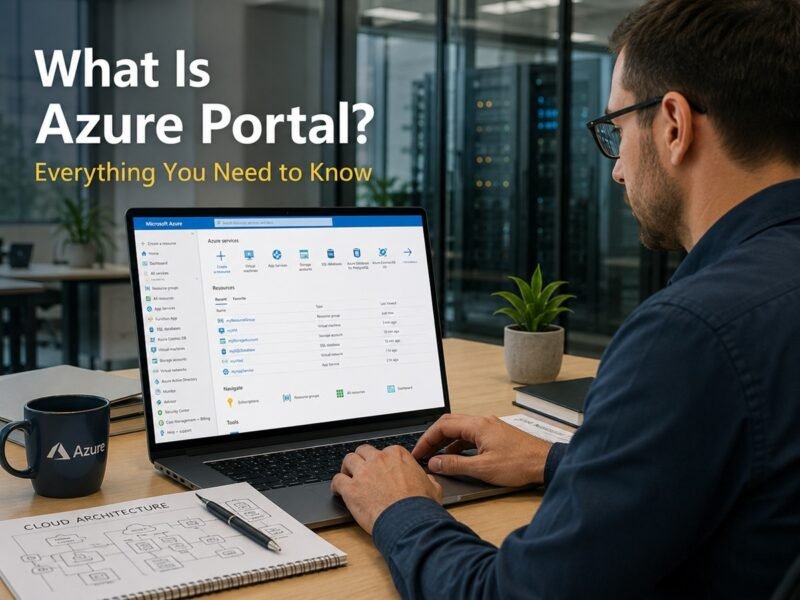
If you’ve ever wondered how developers, startups, and Fortune 500 companies manage massive cloud infrastructure without drowning in complexity, the answer often starts with one powerful tool: the Azure Portal.
Whether you’re a complete beginner curious about cloud computing or a developer ready to spin up your first virtual machine, this comprehensive guide will walk you through everything you need to know about the Microsoft Azure Portal. We’ll cover what it is, why it matters, how to get started with a free account, step-by-step “how to” tutorials, comparisons with AWS, best practices, and answers to the most common questions.
By the end of this article, you’ll feel confident navigating the Azure Portal, understanding its capabilities, and taking your first steps in Microsoft’s powerful cloud ecosystem.
Let’s get started.
What is the Azure Portal?
The Azure Portal is Microsoft’s unified, web-based cloud management platform. It provides a single, intuitive interface where you can create, configure, deploy, manage, and monitor virtually every resource in the Azure cloud — all from your browser.
Think of it as the mission control center for your entire Azure environment. Instead of juggling multiple tools, command lines, or scattered dashboards, everything lives in one place with a clean, customizable interface.
Core Characteristics
- Web-based interface: No software installation required. Access it from any modern browser on desktop, tablet, or even via the Azure mobile app.
- Resource management hub: Provision and manage virtual machines, databases, storage accounts, web apps, networking components, AI services, and more.
- Customizable dashboards: Create personalized views with tiles, charts, and quick actions tailored to your projects or team needs.
- Integrated tools: Built-in Cloud Shell (Bash/PowerShell), Azure Copilot (AI assistant), search across all services, and deep integration with Microsoft Entra ID for security.
The Azure Portal is Microsoft’s single unified web console for building, deploying, managing, and monitoring all Azure cloud resources through an intuitive, customizable browser-based dashboard.
In short, if you’re asking “What is the Azure portal?”, it’s your go-to graphical control plane for the entire Microsoft cloud.
Is Azure From Microsoft?
Yes — Azure is 100% from Microsoft.
Microsoft Azure (originally launched as Windows Azure in 2010 and rebranded in 2014) is Microsoft’s global public cloud computing platform. It competes directly with Amazon Web Services (AWS) and Google Cloud Platform (GCP) but stands out with deep integration into the Microsoft ecosystem (Windows Server, Active Directory/Entra ID, Office 365/Microsoft 365, .NET, Visual Studio, and Power Platform).
Quick History
- Announced in 2008 under the codename “Project Red Dog.”
- Commercially launched February 2010 as Windows Azure.
- Renamed Microsoft Azure on March 25, 2014, coinciding with the introduction of the modern ARM-based portal.
- Today: 60+ regions worldwide (with continuous expansion), serving millions of customers from startups to governments and enterprises.
Azure powers everything from simple websites and mobile backends to complex AI workloads, hybrid cloud setups, and mission-critical enterprise applications. Its global infrastructure includes data centers across North America, Europe, Asia, and emerging markets, with strong emphasis on compliance, sovereignty, and hybrid connectivity (Azure Arc, Azure Stack).
When people ask “Is Azure from Microsoft?”, the answer is a resounding yes — and it’s one of the most trusted and widely adopted cloud platforms on the planet.
What Is the Use of Azure Portal?
The Azure Portal serves as your central command center for cloud operations. Its primary use is to simplify the entire lifecycle of cloud resources without requiring deep command-line expertise (though it pairs beautifully with Azure CLI, PowerShell, and Infrastructure as Code tools like Bicep or Terraform).
Key Uses of the Azure Portal
You can use the Azure Portal to:
- Provision and manage compute: Deploy and scale virtual machines (Windows or Linux), containerized workloads (AKS, Container Apps), and serverless functions.
- Handle data services: Create and manage Azure SQL Databases, Cosmos DB, PostgreSQL/MySQL flexible servers, Synapse Analytics, and storage accounts (Blob, Files, Tables, Queues).
- Configure networking: Set up virtual networks (VNets), load balancers, VPN gateways, Application Gateways, Private Endpoints, and Azure Firewall.
- Build modern applications: Deploy web apps via App Service, Static Web Apps, API Management, and Logic Apps.
- Secure everything: Manage identities with Microsoft Entra ID, secrets in Key Vault, security posture via Microsoft Defender for Cloud, and compliance policies.
- Monitor and troubleshoot: Use Azure Monitor, Application Insights, Log Analytics, metrics, alerts, and diagnostic logs — all with beautiful visualizations.
- Control costs: Track spending in real time, set budgets, analyze usage with Cost Management, and optimize with recommendations.
- Marketplace & automation: Browse and deploy solutions from the Azure Marketplace, use templates, and automate with Azure Automation or DevOps pipelines.
Here’s a quick reference table:
| Feature | Purpose |
| Virtual Machines | Run Windows/Linux VMs with full control over OS, networking, and scaling |
| Storage Accounts | Store blobs, files, tables, and queues with high durability and scalability |
| Databases | Managed relational (SQL, PostgreSQL, MySQL) and NoSQL (Cosmos DB) databases |
| Networking | Virtual networks, load balancing, connectivity, and security controls |
| Monitoring | Metrics, logs, alerts, dashboards, and Application Performance Monitoring |
Whether you’re a solo developer prototyping an idea or an enterprise architect running global infrastructure, the Azure Portal makes cloud management accessible, visual, and efficient.
Key Features of Microsoft Azure Portal
The Microsoft Azure Portal packs powerful capabilities that make cloud management delightful. Here are the standout features every user should know:
1. Customizable Dashboard & Home Experience
Your landing page is fully customizable. Pin resources, add metric charts, create quick-start buttons, and organize by project or environment (dev/test/prod). Azure even suggests relevant tiles based on your usage.
2. Resource Groups — Logical Organization
Resource groups are the fundamental container for managing related resources together (lifecycle, access control, cost tracking). Tagging resources inside groups enables powerful filtering, reporting, and governance.
3. Azure Marketplace
One-click deployment of thousands of pre-configured solutions — virtual machines images, databases, AI models, security tools, monitoring solutions, and third-party software (WordPress, Jenkins, Databricks, etc.).
4. Microsoft Defender for Cloud (formerly Security Center)
Unified security management and threat protection across your Azure, on-premises, and multi-cloud workloads. Get recommendations, just-in-time VM access, vulnerability assessments, and regulatory compliance dashboards.
5. Cost Management + Billing
Real-time cost analysis, forecasting, budgets with alerts, cost allocation by tags or resource groups, and savings recommendations (reserved instances, spot VMs, right-sizing).
6. Azure Monitor & Insights
Comprehensive observability platform. Collect metrics and logs from every service, create custom dashboards, set smart alerts, use Application Insights for code-level APM, and leverage Log Analytics workspaces for powerful Kusto Query Language (KQL) searches.
7. Cloud Shell
Browser-based authenticated shell (Bash or PowerShell) with Azure CLI, Azure PowerShell, and popular tools pre-installed. Persists files in Azure Files storage. Perfect when you don’t want to install anything locally.
8. Azure Copilot (AI-Powered Assistant)
The newest game-changer. Ask natural language questions (“Why is my VM slow?” or “Show me underutilized resources”), get guided actions, explanations, and even generate deployment scripts — all inside the portal.
These features work together to give you both high-level visibility and deep control.
Microsoft Azure Portal URLs
Here are the most important Microsoft Azure Portal URLs you should bookmark:
| URL | Purpose |
| https://portal.azure.com | The primary web interface for managing all Azure resources and services |
| https://azure.microsoft.com | Official Azure homepage — documentation, pricing, free account signup, product info |
| https://account.azure.com | Account and subscription management portal (billing overview, subscription details) |
| https://management.azure.com | Azure Resource Manager (ARM) REST API endpoint (used by tools, scripts, and portal backend) |
Pro tip: After signing in at portal.azure.com, you can switch directories/tenants easily if you manage multiple Azure environments (personal + work).
How to Login to Azure Portal?
Logging into the Azure Portal is straightforward, but a few tips will save you headaches.
Step-by-Step Login Guide
Step 1: Visit the Azure Portal
Open your browser and go to https://portal.azure.com. You’ll be redirected to the Microsoft sign-in page if you’re not already authenticated.
Step 2: Enter Your Microsoft Account
Use any of these: – Personal Microsoft account (Outlook, Hotmail, Live) – Work or school account (Microsoft Entra ID / Azure AD) – Guest account from another tenant
Step 3: Complete Authentication
Enter your password. If your organization or personal account has Multi-Factor Authentication (MFA) enabled (highly recommended), approve the sign-in via the Microsoft Authenticator app, SMS, or hardware key.
Step 4: Access Your Dashboard
Once authenticated, you’ll land on the Azure Home dashboard. If this is your first time, Azure may walk you through initial setup or offer to create a free account.
Troubleshooting Common Login Issues
- “We couldn’t sign you in” or stuck on loading: Try incognito/private mode, clear browser cache/cookies, or try a different browser. Disable VPN/ad-blockers temporarily.
- Wrong directory/tenant: After login, click your profile icon (top right) → Switch directory.
- Account suspended or no subscription: Create a free account first or check billing status at account.azure.com.
- Conditional Access policies blocking: Common in corporate environments — contact your IT admin.
- MFA fatigue or app issues: Use the “Sign in another way” option or check the Authenticator app.
Once logged in successfully, you’re ready to explore!
Create Your Azure Free Account
One of the best ways to start is by creating a free Azure account. Microsoft makes it easy and generous for newcomers.
What You Get with a Free Azure Account (Current as of 2026)
- $200 credit for the first 30 days — use it on any Azure service (VMs, databases, AI, etc.).
- 12 months of free monthly quotas on many popular services (new customers only).
- 65+ always-free services with generous monthly limits that never expire as long as you have an account.
Popular 12-month free examples (limits apply): – Virtual Machines: Hundreds of hours of burstable VMs (B-series) – Databases: Azure SQL, Cosmos DB, PostgreSQL/MySQL flexible servers – Storage, networking, App Service, Key Vault, and more
Always-free highlights: Azure Functions (1M requests/month), Static Web Apps, many AI services, Entra ID free tier, Cost Management, basic monitoring, and more.
Eligibility: Available to new customers who haven’t previously received the 12-month free benefits. You’ll need to verify with a phone number and credit/debit card (small temporary authorization hold, usually refunded). Students can get extra benefits via Azure for Students ($100 credit, no card sometimes required).
Numbered Guide to Create Your Azure Free Account
- Go to https://azure.microsoft.com/free or click “Start free” on azure.microsoft.com.
- Sign in with a Microsoft account (create one if needed).
- Fill in basic information (name, email, phone).
- Verify your identity (phone + credit card).
- Agree to terms and create the account.
- Once complete, you’ll be redirected to the Azure Portal with your free subscription active.
Important: After your $200 credit expires or 30 days pass, you automatically move to pay-as-you-go pricing. You won’t be charged unless you explicitly use paid resources beyond free limits. You can cancel anytime.
Always verify the latest free tier details on the official free services page because Microsoft occasionally updates offerings.
Azure Portal “How To” Series
Let’s get practical. Here are five common tasks you’ll perform regularly in the Azure Portal.
How to Create a Virtual Machine
- In the Azure Portal, click + Create a resource (or search “Virtual machine”).
- Select your subscription and create or choose a Resource Group.
- Choose an image (Ubuntu Server, Windows Server, or from Marketplace).
- Select a size — start with B1s or B2s (often eligible for free tier hours).
- Configure networking (create new VNet or use existing), disks, and monitoring.
- Review pricing estimate and click Create. Deployment usually takes 2–5 minutes.
- Once deployed, connect via RDP (Windows) or SSH (Linux) using the public IP or Bastion.
How to Create a Storage Account
- Search for Storage accounts → Create.
- Choose subscription, resource group, unique name (lowercase, globally unique).
- Select performance tier (Standard), redundancy (LRS for most starters), and access tier (Hot).
- Configure networking, encryption (Microsoft-managed keys by default), and advanced settings.
- Review + create. Get connection strings and keys from the Access keys or SAS
How to Deploy a Web App (App Service)
- Search App Service → Create.
- Choose subscription/resource group, unique name, publish method (Code or Docker), runtime stack (.NET, Node.js, Python, etc.).
- Select pricing tier (F1 Free or B1 Basic for starters).
- Configure deployment source (GitHub, local Git, Zip deploy) if desired.
- Once running, browse to the default URL or configure custom domain + SSL.
How to Monitor Resources
- Go to Monitor in the left menu (or open a specific resource → Insights or Metrics).
- Use Metrics explorer to chart CPU, memory, requests, etc.
- Create Alerts for thresholds (e.g., CPU > 80% for 5 minutes).
- Use Log Analytics workspaces and write KQL queries for deep troubleshooting.
- Pin useful charts to your dashboard.
How to Configure Security Settings
- Open Microsoft Defender for Cloud from the portal menu.
- Review your secure score and recommendations.
- Enable just-in-time VM access, adaptive network hardening, and vulnerability scanning.
- For secrets and keys, create a Key Vault and store credentials there instead of in code.
- Use Microsoft Entra ID (Azure AD) for identity — enable MFA and Conditional Access policies.
These hands-on tasks demonstrate why the Azure Portal is loved by both beginners and pros.
Is the Azure Portal Free?
Yes — the Azure Portal itself is completely free to use.
You can log in, browse services, create dashboards, run Cloud Shell, and manage resources without paying a cent for the portal experience.
What You Actually Pay For
You pay only for the Azure services and resources you provision and consume: – Virtual machine compute hours – Storage consumed (GB/month) – Database DTUs/vCores or serverless usage – Data transfer, load balancer rules, etc.
Pricing Model Explained
Azure primarily uses pay-as-you-go (consumption-based) pricing. Other options include: – Reservations: Pre-pay for 1 or 3 years for significant discounts on VMs, databases, etc. – Spot VMs: Up to 90% cheaper for interruptible workloads. – Hybrid Benefit: Bring your own Windows/SQL licenses for extra savings. – Free tier & credits: As described earlier.
| Pricing Aspect | Description |
| Pay-as-you-go | Pay only for what you use, billed monthly. No upfront commitment. |
| Free Allowances | Many services have monthly free quotas (especially first 12 months + always-free). |
| Reservations | Commit to usage for 1–3 years → 30–72% savings. |
| Spot Pricing | Deep discounts for flexible, interruptible workloads. |
| Enterprise | Volume licensing, custom agreements, and dedicated support via EA or CSP. |
Bottom line: The portal is free. Experiment confidently with your free account and only pay when you scale into production workloads.
Azure Portal vs AWS Management Console
Both are powerful, but they feel different. Here’s a head-to-head comparison:
| Feature | Azure Portal | AWS Management Console |
| Ease of Use | Modern, clean, highly customizable dashboards with blade navigation and strong search. Azure Copilot adds AI assistance. | Vast number of services; can feel cluttered. Strong search but steeper initial navigation. |
| Integration | Exceptional with Microsoft 365, Entra ID, Teams, Power Platform, GitHub, and .NET ecosystem. | Strong with other AWS services; good third-party integrations via Marketplace. |
| Enterprise Support | Excellent compliance (FedRAMP, ISO, SOC, GDPR, sovereign clouds), hybrid (Arc, Stack), and enterprise agreements. | Very strong enterprise features, Marketplace, and partner ecosystem. |
| Learning Curve | Intuitive for Microsoft-centric users; excellent documentation and guided experiences. Copilot lowers barrier further. | Can be overwhelming due to service breadth; excellent docs and Well-Architected Framework help. |
Verdict: If your organization lives in the Microsoft ecosystem or values a polished, AI-assisted experience with strong hybrid capabilities, the Azure Portal often feels more modern and cohesive. Many teams use both platforms in multi-cloud setups.
Benefits of Using Microsoft Azure Portal
Why choose the Azure Portal over CLI-only or third-party tools?
- Centralized management: One pane of glass for everything.
- Scalability: From a single web app to global multi-region deployments — the portal scales with you.
- Security & governance: Deep RBAC, Microsoft Entra ID integration, Defender for Cloud, Azure Policy, and just-in-time access.
- Automation ready: While the portal is visual, every action generates ARM templates, Bicep, or Terraform code you can reuse.
- Cost optimization: Built-in tools + AI recommendations help you avoid bill shock.
- Global availability & compliance: 60+ regions, 140+ countries, and industry-leading certifications.
- Developer & operator friendly: Cloud Shell + Copilot bridge the gap between clicking and scripting.
Whether you’re managing a personal project or enterprise infrastructure, the Azure Portal accelerates productivity while maintaining control.
Common Azure Portal Issues and Solutions
Even the best tools have occasional hiccups. Here are frequent issues and fixes:
Login Failures
- Clear cache, try incognito, check MFA device, or use “Forgot password.”
- Corporate Conditional Access policies sometimes block unknown locations/devices.
Permission Issues (RBAC)
- You see resources but can’t edit? You likely lack Contributor/Owner role on the subscription or resource group. Ask the subscription owner to grant access via Access control (IAM).
Slow Dashboard or Portal
- Too many resources pinned? Use filters, resource groups, and tags.
- Browser extensions or slow network. Try Edge/Chrome with hardware acceleration.
- Large Log Analytics queries can be slow — optimize KQL or use sampling.
Subscription Problems
- Free trial expired? Convert to pay-as-you-go or create new free account (if eligible).
- Suspended for billing issues? Update payment method at account.azure.com.
Billing Errors or Unexpected Charges
- Set up budgets + alerts immediately.
- Use Cost Management to analyze by resource group/tag.
- Right-size or delete unused resources (check Advisor recommendations).
Most issues resolve quickly with the in-portal help, Microsoft Learn documentation, or Azure support tickets (available even on free accounts for billing/technical issues).
Best Practices for Azure Portal Users
Follow these recommendations to stay secure, organized, and cost-efficient:
Security
- Enable MFA on all accounts.
- Use Microsoft Entra ID Privileged Identity Management (PIM) for just-in-time admin access.
- Never store secrets in code or portal settings — use Key Vault.
- Regularly review Microsoft Defender for Cloud recommendations.
Resource Organization
- Always deploy resources into Resource Groups (never at subscription root).
- Apply consistent naming conventions and tags (environment, owner, cost center, project).
- Use Azure Policy to enforce standards (allowed locations, required tags, SKU restrictions).
Cost Control
- Set monthly budgets with email alerts at 50%, 80%, and 100%.
- Review Cost Management weekly.
- Delete or stop unused VMs and resources (use auto-shutdown policies).
- Leverage reservations and spot instances where appropriate.
Monitoring & Operations
- Enable diagnostic settings on all critical resources.
- Create meaningful alerts (actionable, not noisy).
- Use Azure Monitor workbooks for executive dashboards.
- Adopt Infrastructure as Code (Bicep/Terraform) alongside portal for repeatability.
Access Management
- Follow least-privilege principle with RBAC roles.
- Prefer groups over individual assignments.
- Regularly audit access with Access reviews.
Adopting these practices early will save you time, money, and stress as your Azure footprint grows.
Frequently Asked Questions
What is the Azure Portal?
The Azure Portal is Microsoft’s unified web-based console for creating, managing, monitoring, and optimizing all your Azure cloud resources from a single customizable interface.
What is the use of Azure Portal?
It lets you manage virtual machines, databases, storage, networking, web apps, security, costs, and monitoring without command-line tools — while still supporting advanced automation.
How to login to Azure Portal?
Go to portal.azure.com, sign in with your Microsoft account, complete MFA if prompted, and access your dashboard. Use incognito mode if you encounter issues.
Is Azure Portal free?
Yes. The portal interface is free. You only pay for the Azure services you use. New users get $200 credit + 12 months of free service quotas + always-free services.
Is Azure from Microsoft?
Yes. Microsoft Azure is Microsoft’s enterprise-grade public cloud platform, offering IaaS, PaaS, and SaaS services globally.
What services can be managed through Azure Portal?
Virtually all Azure services: compute (VMs, containers, functions), data (SQL, Cosmos DB, storage), networking, AI/ML, security (Defender, Key Vault), monitoring, DevOps, and third-party solutions via Marketplace.
Can beginners use Azure Portal?
Absolutely. The portal is designed to be beginner-friendly with guided experiences, templates, and now Azure Copilot for natural language help. Start with the free account and follow the “How To” tutorials in this guide.
How secure is Azure Portal?
Extremely secure when used properly. It leverages Microsoft Entra ID, RBAC, MFA, Conditional Access, Defender for Cloud, and encryption everywhere. Follow best practices (least privilege, Key Vault, regular audits) for maximum security.
What is Azure Marketplace?
A curated digital store inside the Azure Portal where you can discover, buy, and deploy thousands of pre-configured applications, virtual machine images, AI solutions, and services from Microsoft and partners with one-click deployment.
How do I create a free Azure account?
Visit azure.microsoft.com/free, sign in with a Microsoft account, verify with phone and credit card, and start building. You’ll receive $200 credit for 30 days plus generous free monthly allowances.
Conclusion
The Azure Portal is far more than just a pretty dashboard — it’s the intelligent control plane that makes Microsoft’s vast cloud ecosystem accessible, manageable, and powerful for everyone from hobbyists to global enterprises.
Whether you’re asking “what is the Azure portal?”, “how to login to Azure Portal?”, or “is the Azure portal free?”, the answers are clear: it’s Microsoft’s free-to-access, web-based management hub for all Azure services. With a generous free tier, intuitive interface, AI assistance via Copilot, and deep integration across the Microsoft stack, it lowers the barrier to world-class cloud computing.
Who should use it? Developers, IT administrators, DevOps engineers, architects, students, startups, and enterprises — basically anyone who wants to build, run, or manage applications and infrastructure in the cloud.
Key benefits include centralized visibility, strong security posture, cost transparency, scalability, and a modern experience that keeps improving with AI.
Ready to get started? Create your free Azure account today at azure.microsoft.com/free and begin exploring the portal. Spin up a virtual machine, deploy a web app, or just play with the dashboard. The cloud has never been more approachable.
Microsoft continues to invest heavily in the Azure Portal (witness Azure Copilot and ongoing UX improvements), so now is an excellent time to build your skills.
Have questions or want a deeper dive into a specific service? Drop a comment below or explore the official Microsoft Learn paths for Azure Portal administration.
Start building on Azure today — your next big idea deserves a reliable, secure, and scalable home.